Operations
Plan project and opportunity demand in Operations: assign people or placeholders, and review capacity by operating unit
Overview
Operations is Core's resource-planning workspace. It plans future labor demand before time is logged, using project assignments, opportunity assignments, and day-level cells so weekly and monthly capacity views can roll up accurately.
Operations Workspace
The Operations workspace (sidebar Operations) provides Resourcing, Forecasting, Capacity, and permission-gated Rates views. Monthly Capacity, Resourcing, and person project plans can show 6 months or 12 months on the same screen so you can look farther ahead without shifting to the next window. People and customer projects with no planned resourcing in the selected date range are hidden by default so the planning views stay focused on active demand.
Use Project status in Resourcing or Forecasting to show one or more lifecycle groups together. Current remains the default and excludes HubSpot deal-stage planning. Select Deal — Best Case, Deal — Commit, or both when you want to pencil-resource pipeline work alongside selected Core statuses. When a deal leaves Best Case or Commit without being won, Core removes an integration-created planning project and its penciled resourcing; a pre-existing Core project linked by name is restored and unlinked instead of deleted.
Core remembers your Project status and Operating unit selections in this browser and in your user preferences, so they follow you across visits and devices. The Operating unit filter accepts several units and includes records that match any selected unit. Filters included in a shared Operations link take precedence for that visit without replacing your saved selections. Choose Reset to return Project status to Current and Operating unit to All.
People, Resourcing, and Forecasting initially render 50 matching rows to keep large workspaces responsive. Choose Load more to display the next group in the same filtered result. This changes how many rows are on screen; it does not remove records from the result. Resourcing and Forecasting also show a Total row that sums every project in the current filtered result, including rows you have not loaded yet.
In the Company view, month and week headers show a holiday marker when that period includes a company holiday.
The Forecasting view combines capacity totals with scheduled revenue. Use Contract status to choose which parent contracts contribute to project rows, expanded schedules, and footer totals. All is the saved default and includes Draft, Pending Approval, and Active contracts in Forecasted; select Completed, Expired, or Terminated explicitly, then include Past Schedule in the Forecasting filter to review closed-contract history. Filters included in a shared Operations link take precedence for that visit without replacing your saved Contract status selection. Draft and pending payment schedules stay in Contract Billing until they are approved. Shared contract revenue is counted once across linked projects, and revenue displays in the schedule's currency when available. Payment schedule rows can be sorted by project, schedule, source, status, or amount. Completed, cancelled, and archived projects stay out of Forecasting and other Operations demand lists automatically.
In Forecasting, Forecasted means a project bills through another project or has a non-zero scheduled amount this month or later on a contract that is not closed. This presence check includes draft and pending future amounts even though the displayed Forecasting totals include only active or approved schedules. Past Schedule means active or approved schedule history exists but no current or future amount qualifies, while Unforecasted means neither condition applies. Forecasted is the default. You can combine Forecasted, Unforecasted, and Past Schedule; choose All instead to show every presence group.
Each payment schedule is attributed to one linked project. Contracts linked to one project use that project automatically; for contracts linked to several projects, authorized billing users can choose the schedule's project in Contract Billing. Operations Forecasting uses the full schedule amount only on that project, preventing shared-contract revenue from being duplicated or split across projects.
For people with Revenue access, Forecasting also marks a past project month when the Xero sales-invoice total for the matching customer and currency is below the live scheduled amount. The scheduled amount remains visible, and invoice totals stay on the server.
After you select one or more operating units, the Forecasting Performance column compares loaded labor cost with each project's attributed billed and future scheduled revenue. Core keeps the column hidden and skips its calculation while Operating unit is All. Open a project and choose Performance for the worked/planned hours, labor cost, past invoiced, and future forecasted breakdown. Core shows an em dash when revenue is zero, cost rates are incomplete, or currencies are mixed; viewers without performance access do not see the column.
On Forecasting payment schedule project rows, people who can update projects can use the row actions menu to Hide from resourcing (soft-hide without changing project status), Mark complete, or Archive. Use Show hidden in the filter bar to reveal soft-hidden projects again, then choose Show in resourcing from the same menu.
Use Bill with another project when a billable spin-off or change-order project should stay visible but its payment plan belongs to another project for the same company. The billing target must be a billable planning, active, or on-hold project that is not archived and does not already bill through another project. Links are always direct: a billing target cannot itself point to another project or become a child while other projects depend on it.
The linked project remains visible in Forecasting with a $0 total and a link to the project that owns the revenue. Core prevents the billing target from being deleted or made ineligible while linked projects depend on it. Marking the child project not billable clears the billing link after confirmation.
Each project also has a Forecasting tab with the same payment-schedule month window and billing-item detail available in Operations. Its schedules are grouped by parent Contract status, including an Archived group, while schedules without a recognized parent status appear last under No contract status. Authorized billing users can start a manual payment schedule from Forecasting; Core seeds due months from rate × quantity and opens Contract Billing so they can review amounts and approve the draft. If the project has no unused billing items, the contract picker still lists Unforecasted, Fully forecasted, and No billing items groups — any of those contracts can be linked, and Manage billing items remains available without linking. If the project has no company yet, choose an existing company first or create one when your role permits it; Core links the company before continuing to Contract Billing. The schedule appears in Forecasting after approval. If another edit changed an active schedule amount first, Core asks you to refresh instead of overwriting the newer value.
Hour cells in Operations and amount cells on Forecasting / scheduled-payment grids accept a leading = formula and save the computed number. Invalid formulas and negatives do not save.
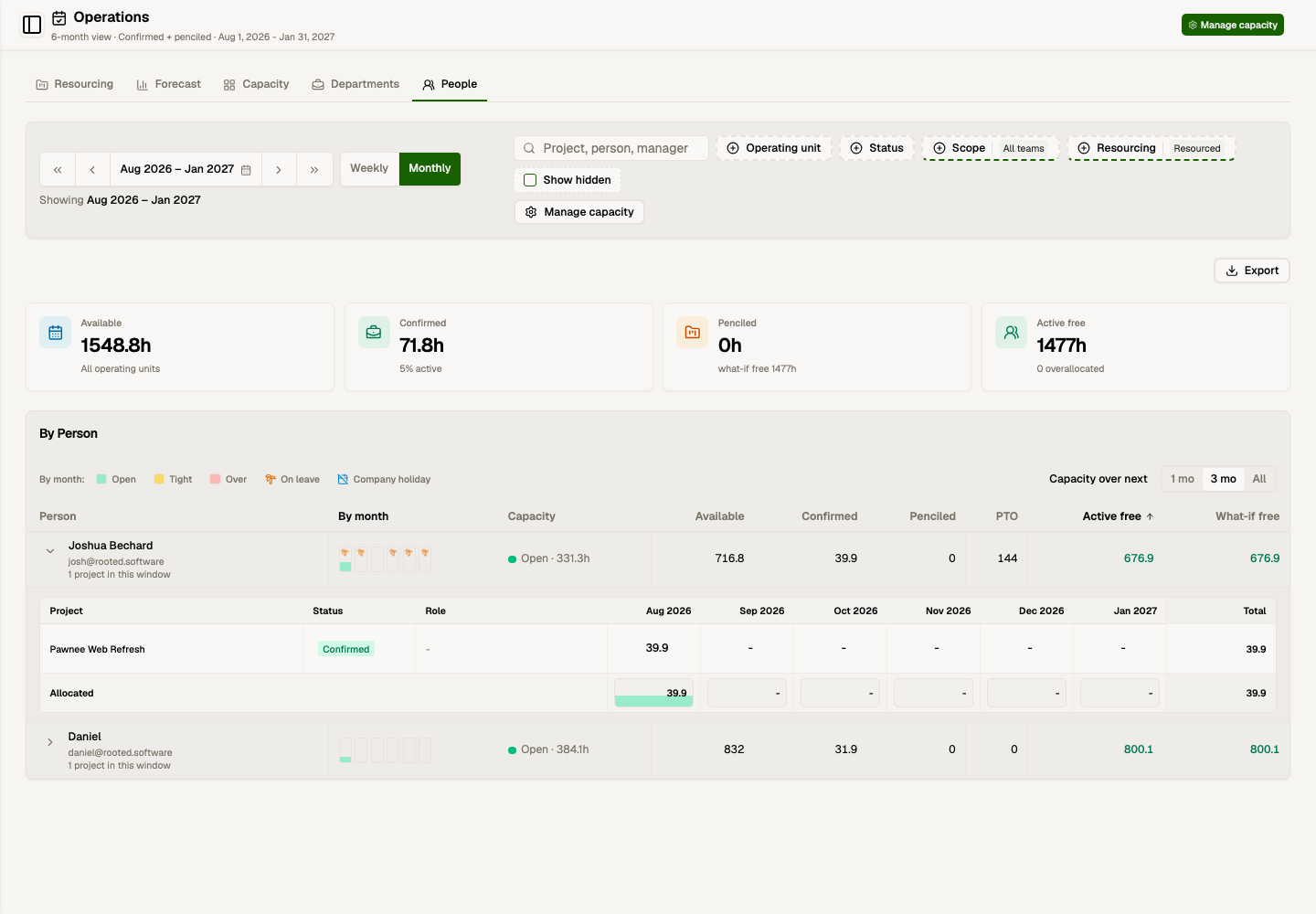
Use Show unresourced to include the full roster and unstaffed customer projects. Core remembers this setting after you apply filters. The People view shows PTO, available hours, and free hours together so you can audit unused capacity without switching views.
Managers open Operations on My managed team by default and can use Scope to switch between their own resourcing, managed teams, and all teams. Technicians and read-only roles only see their own resourcing, even from direct person links.
People with project_resourcing:read and a linked staff record can update their own existing weekly or monthly hours and assignment status in My resourcing. Adding, swapping, converting, or removing assignments still requires a resourcing management permission.
In Operations > Resourcing, the Resourcing filter stays in effect even when Deal statuses are selected. Choose Resourced All for any assignment, Resourced — Placeholder for placeholder-only projects, Resourced — Person for named people with no placeholder or resource pool, Resourced — Resource Pool for projects staffed only by a shared resource pool, Not resourced for projects with no assignments, or Over-resourced when labor cost (person cost × worked hours in the past plus future confirmed/penciled hours) is greater than labor-allocated live payment-schedule value. The Over-resourced calculation runs when that filter is selected, and matching rows show an Over-Resourced badge. Project rows can also show Unresourced and Placeholder Resourced (any placeholder, even when people are also assigned) badges. Capacity, Departments, and People keep the coarser Resourced / Not resourced / All chip.
In Operations > Resourcing, use the search filter to find projects by project name, project manager, assigned person or placeholder, or budget line. Project rows show editable start date, end date, budget, and project manager fields. When a project has no project manager set, Core defaults the column to the company's primary technician (shown as a soft default until you save a manager). New projects also pre-fill the project manager from that primary technician when you pick a company. When a project has a planned-hours budget, the row compares that plan with resourced hours across the full project and shows how far it is over or under. If Core cannot load the comparison, it shows Budget health unavailable instead of treating missing data as zero. Use the row expander to review each person or placeholder assignment under the project. Select a named person to open their Operations person view; placeholder names remain plain text. Select an assignment's Penciled or Confirmed badge to change its status without opening the project. Unstaffed projects can still expand so you can add the first resource from the expanded row, opening the New assignment form without leaving the grid. Department grouping and the operating-unit filter in this view follow the project manager's department (or the primary technician's department when the manager is still a soft default).
In Operations, use Resource pools in the page header to create a named pool tied to a line of business and add people as a hard percent of billable time or as un-resourced leftover. Then assign that pool on a project. Shared hours count fully against each member’s availability; over-booking shows on the people, not a pool dashboard. If a pool has planned hours but no members with contributing billable availability, capacity is unavailable until you update the pool, its members’ capacity, or the planned hours.
If assignee capacity cannot load, Operations keeps the known project hours visible and labels affected periods Capacity unavailable. Hour edits pause until capacity can be checked; select Try again to retry. If project demand itself cannot load, the Resourcing, People, and Forecasting views explain that the project information is unavailable instead of showing an empty result as complete.
In Operations > Capacity, capacity managers can sort by the table headers, click legend items to filter by open, tight, overbooked, leave, or holiday periods, expand a person to review their project schedule breakdown, and edit weekly or monthly project hours from the expanded row or that person's Operations view. Select a single assignment's Penciled or Confirmed badge to change its status inline. When a breakdown row combines several assignments, the badge links to the project Resourcing tab so you can update each assignment separately. A single assignment stays editable even when a zero-hour period falls outside its current dates; Core asks whether to extend the assignment before saving. Read-only periods explain when no assignment exists or several assignments must be edited separately. Edits also validate available capacity. Weekly Spread forward requires an assignment end date so Core has a closed window for reallocation. Select a person's capacity status in the Capacity grid, or choose Edit capacity on that person's project plan, to update weekly hours, target billable percentage, primary line of business, and line-of-business allocation.
On a person's project plan, change an hour cell and press Tab to save and move to the next hour cell in the row, or Shift+Tab to move back. At the row edge, tabbing continues to the project controls. Enter or leaving the cell also saves; Escape cancels. Changes as small as 0.01 hours are kept. Reducing hours does not need another over-capacity confirmation, while increases and edits outside assignment dates retain their checks. If a save fails, the cell shows Not saved and keeps your entry so you can return to it and press Enter or Tab to retry.
Use Alt+Down to reach the cell's Adjust total and Spread forward actions. Spread forward redistributes hours across later weeks or months while preserving manual edits. Fully manual periods keep their hours, and other periods share the remainder. Core warns when manual edits or the available assignment window prevent it from preserving the total.
In a person's weekly plan, open a week-header menu to move that week's editable assignments together. Bump to next week adds the selected hours to the following week and may extend an assignment through that week's Sunday. Spread to remaining weeks adds the selected hours evenly through each closed assignment's end date; open assignments use the visible planning horizon. Core confirms the affected assignment count and hours before applying the change, preserves existing later-week plans, and identifies assignments that need another attempt if only part of the batch succeeds.
Completed periods compare Actual tracked hours with Planned resourcing and show the variance. This comparison appears on Capacity person and project rows, People project expansions, and person project plans. Current and future periods remain plan-only, and the Penciled % control does not scale historical actual-versus-planned values.
Project Resourcing tab
Each project has a Resourcing tab for day-, week-, or month-level planning on that project alone. Open a project and choose Resourcing.
Use New assignment to add a resource window:
| Field | Use |
|---|---|
| Add a person | Search staff, contractors, and resource-only people |
| Add a placeholder resource | Create named demand for a role before the person is known |
| Add a resource pool | Third Who tab when any pool exists. Hours draw from members’ billable availability (hard % or leftover un-resourced time). Status is Shared. |
| Placeholder name / staffing role | Label unstaffed demand, such as "Senior engineer" or "Engineering" |
| Budget line | Optional labor attribution for project budget reporting |
| Operating unit | Optional override; otherwise Core uses the budget line unit, then project unit |
| Start date / no. of months / end date | Date window for spread and capacity math; defaults from project dates, and months can drive the end date |
| Plan hours as | Enter total hours for the window or hours per month |
| Show months | Preview the monthly windows before saving |
| Spread mode | Weekday even, manual, front-load, or back-load |
| Status | Confirmed counts as committed demand; penciled is what-if demand. New people default to Confirmed, and new placeholders default to Penciled; you can change the status before saving. |
When a project has a Dynamic payment-schedule forecast, the New assignment form asks whether the assignment should contribute. If there is only one eligible forecast, Core selects it automatically after the forecast check finishes. You can also use an assignment's row menu to start or stop contributing. An assignment can contribute to only one Dynamic forecast at a time, and changing its planned hours immediately refreshes the calculated schedule months.
The header shows assignment count, confirmed vs penciled work, placeholder count, planned hours, budgeted labor hours, and planned value from resolved bill rates. Budgeted labor opens the project budget, and planned value opens assignment details so you can adjust the inputs behind those totals.
On the project's Budgets tab, the performance card compares forecast billable value with the value of active linked contracts. Core makes that comparison only when every contributing contract uses the same currency and that currency matches the forecast. If a currency is missing or does not match, the card explains what must be aligned and withholds the comparison rather than combining unlike amounts.
Use the connected date controls to choose daily, weekly, or monthly planning, then choose the matching range. Daily shows 7, 14, or 21 days; weekly shows 4, 10, or 16 weeks; monthly shows 6, 12, or 18 months. Rows show billable rate, future planned hours, and period planned value when rates are resolved. Select a named person in the matrix or assignment details to open their Operations person view; placeholder names remain plain text. The matrix opens on the first period that already has resourcing planned, and Core remembers the range you pick for next time.
Select a row's future planned hours to open the monthly schedule editor. From there, update the assignment dates, status, notes, and monthly planned hours, or fill monthly hours up to the person's remaining capacity.
Use Export to download assignment and day-level cell details.
The live Project Works import is retired. Historical source labels and mappings remain for reference, but resourcing plans are now created and maintained directly in Core.
Placeholder Resources
Use a placeholder resource when sales planning knows the role, duration, and expected hours, but not the person yet. Placeholder resources roll into project, operating-unit, and forecast demand like assigned people, but they do not count against a named person's capacity until converted.
In Operations > Capacity, placeholder demand appears in an aggregated Placeholder resourcing row above Leave & Holidays. Confirmed hours — for people and placeholders — always count at 100% and reduce free capacity. Penciled % counts 100% through 10% of penciled hours for both people and placeholders, or None to drop penciled hours. The default is 100%. Placeholders never increase available capacity. The Demand filter can show confirmed or penciled hours independently.
Expand a named person or Placeholder resourcing row to review its projects and planned hours for each visible period. Placeholder expansions show each project's lifecycle status (Planning, Active, and so on) under the project name, matching Operations > Resourcing. Person expansions keep assignment status and role only. The Allocated footer sums the hours listed on those projects after Penciled %. If Core cannot load project breakdowns, the Capacity totals remain available and the page offers a retry.
When staffing is known, open the assignment details and use Convert to search for the resource person. Core keeps the date window, budget line, status, operating unit, notes, and planned cells.
Editing Demand
Day view allows direct cell edits. Changing one day bleeds the remaining hours forward across future working days so the assignment total stays stable.
Weekly and monthly range views allow bucket edits when an Operations > Capacity row maps to one assignment. Choose Adjust total to change the assignment total by that week or month only, or Spread forward to keep the current total and reallocate later periods. Weekly spreading requires an assignment end date.
If the month you edit falls outside the assignment's start or end dates, Core warns you and offers Extend dates & save or Save anyway. Hours land across the full calendar month either way — you are not blocked from planning past an assignment window.
If the change would exceed the person's available hours that month, Core asks you to type ASSIGN OVER CAPACITY before saving. This applies on the project Resourcing tab, Operations > Resourcing assignment rows, and the technician capacity page.
In Operations > Resourcing, month cells are editable when the project/month value comes from one assignment. Months made up of multiple assignments stay read-only on the project total; expand the project and edit the individual person or placeholder row instead. Editable hour boxes use the same compact style as the project resourcing tab, with penciled work shown as tentative.
Saved edits stay visible immediately, and any related day or month values update together when Core reallocates hours.
Project budget cells show the detailed active budget total when one exists, otherwise the project budget. Open the budget cell to review and edit the project budget without leaving the grid.
When changing a project start or end date in the grid, Core can also update resource assignments that still match the previous project date. Custom assignment windows stay unchanged.
Use Spread evenly to distribute a total while preserving manual overrides. Use Reset overrides and spread to wipe day-level overrides and recalculate.
Use the assignment action menu to Edit the resource or placeholder, operating unit, dates, spread, status, staffing role, and notes. Core reloads the latest assignment before opening the form so saving does not overwrite a newer change from stale page data. Planned hour cells stay unchanged when you edit these assignment details.
The same menu can Swap assigned people, Convert placeholders into named resources, or delete an assignment. Swap defaults to today, can be backdated, and only moves future planned demand from the selected date forward.
Opportunity Demand
Opportunity resourcing uses the same assignment and cell model as projects. Opportunity assignments can be penciled while a deal is still in pipeline, then copied into a project resourcing plan when work is ready to staff.
Operations Rates
The Operations > Rates tab combines average monthly fully burdened costs from Financials Profit by LOB with average monthly staff billable capacity for the selected period. Fully burdened costs include direct expenses plus allocated overhead. Completed months use actual costs. The current month and future months use the Profit by LOB cost forecast so costs and hours cover the same window. Core calculates each person's billable capacity from weekly hours × target billable percentage × 52.1429 ÷ 12, then prorates it by employment dates and effective-dated capacity and operating-unit allocations. Overhead and cost-center units are allocated into revenue-generating lines of business and do not receive their own rates. If staff allocations are unavailable, line-of-business rates use direct expenses and Core explains that the unallocated overhead is not assigned to those rows.
Choose a leading 12-, 6-, or 3-month window, year-to-date, a quarter, last year, or a custom range of up to 36 months. Leading windows begin with the current month. The margin control applies one target across the table:
- Break-even = average monthly costs ÷ average monthly billable hours, using fully burdened costs when overhead allocation is available and rounded up to the next $5
- Rate of profitability = the rounded break-even rate × (1 + margin percentage), rounded up to the next $5
Rates requires Profit by LOB financial access plus tenant-wide Capacity and technician read access. This prevents company pricing from being calculated with an own-only or incomplete staff-hours subset. Open-month forecasts also require detailed expense, payroll, compensation, and accounting-sensitive financial access. Without those keys, completed-month actuals and billable hours still appear, and suggested rates use those completed months only. Current and future months stay empty. A financial admin can grant the extra access, or you can choose a completed period such as Last year.
Project rate resolution
Bill rate resolution is:
- Contract billing item rate for the project's billing item
- Project member hourly rate
- Operating-unit bill rate from the assignment, budget line, or project
- Unresolved
Loaded labor cost resolution is restricted to financial/admin permissions:
- Technician compensation history effective on the assignment date
- Operating-unit cost rate from the assignment, budget line, or project
- Unresolved
Salary rows use annual salary × employer burden ÷ annual capacity hours. Contractor/hourly rows use hourly cost directly. Core keeps these cost rates separate from billable budget usage in project performance.
Operating Units
Resource capacity can be split across operating units in Operations > Manage capacity. For advanced teams, allocation percentages should total 100% for each person and are effective-dated. Unit-filtered capacity views prorate availability by those allocation percentages and filter assignment demand by assignment unit or project unit. The Resourcing view is the exception: its department grouping and unit filter follow the project manager's department so unstaffed and staffed project rows stay together.
A project's Operating unit is always shown on project create and edit. New projects start empty. When you set a project manager while the field is still empty, Core fills it from the manager's primary LOB, or from their first current allocation when no primary LOB is set. Changing a manager's primary LOB opens a checklist of their projects so you can choose which ones switch to the new unit, when you can also edit projects. Assignment Inherit from project reads this stored project operating unit.
Pending invitees appear in resourcing pickers and Manage capacity, so managers can plan assignments, set weekly hours, set target billable percentage, and choose operating-unit allocation before the person accepts their invite.
Financial admins can enter salary/hourly/contractor cost rows on the same manage-capacity page. The numbered form sections end with one Save capacity & compensation action that updates capacity, line-of-business allocation, and compensation together. Saved pay details appear immediately in salary history using their effective date. Those rows support loaded labor cost calculations without changing Xero actual P&L totals.
Permissions
| Permission | Access |
|---|---|
project_resourcing:read | View project and capacity resourcing; linked staff can update their own existing hours and status in My resourcing |
project_resourcing:manage_any | Manage assignments across projects |
project_resourcing:manage_own | Manage assignments on projects where the user is manager/lead, or for people on a team they manage |
technician_capacity:manage | Edit capacity and operating-unit allocations |
financials:compensation | Edit compensation history and view loaded labor cost |
operating_unit_rates:read_bill | Resolve and view bill-rate planning values |